Skip to content

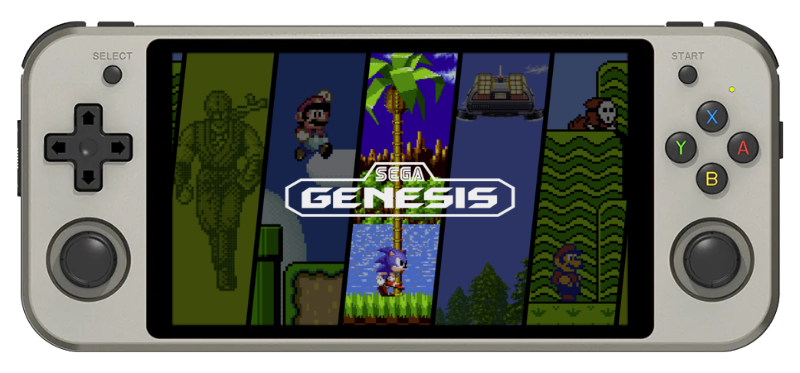
Anbernic RG552

Overview

Device CPU / Architecture Kernel GL driver Interface
RG552 Rockchip RK3399 (ARM) Mainline Linux Panfrost Sway + Emulation Station

Features

Feature                 Notes
Storage ROCKNIX can be run from an SD Card and an second SD card can be used to store games
Wifi Can be turned on in Emulation Station under Main Menu > Network Settings
Bluetooth Supports bluetooth audio and controllers
Rumble Can be turned on or off in Emulation Station under
Controller & Bluetooth Settings > Enable Rumble
Fan Can be set globally, per system or per game.

Notes

Installation

Download the latest RK3399 version of ROCKNIX from the button below and follow the instructions listed on the Install page.

Latest Version Latest Version

Controls

Global Hotkeys

Button Combo Action
L1+START+SELECT Exit Emulator / Application
HOME+Vol + Brightness Up
HOME+Vol - Brightness Down
START+Vol + LED on
START+Vol - LED off
HOME+START+Vol + WIFI enable
HOME+START+Vol - WIFI disable

RetroArch Hotkeys

Button Combo Action
HOME+START (x2) Quit Game
HOME+R1 Save State
HOME+L1 Load State
HOME+X(NORTH) Open RA Menu
HOME+B(SOUTH) Reset Game
HOME+Y(WEST) Show FPS
HOME+A(EAST) Take Screenshot
HOME+R2 Fast-Forward

Notes:

  • By default ROCKNIX will detect your controller and configure RetroArch hotkeys automatically. This is controlled by the "AUTOCONFIGURE RETROARCH HOTKEYS" option in the Settings > Controller & Bluetooth menu. While the option is enabled, RetroArch hotkeys will be overwritten by the above defaults each time RetroArch is launched. If this behavior is not desired that option can be disabled and your user-defined RetroArch hotkeys will be used instead.

Mupen64Plus-SA (Nintendo 64)

Button Combo Action
START Start
B(SOUTH) A
Y(WEST) B
Right Analog Up C Up
Right Analog Down C Down
Right Analog Left C Left
Right Analog Right C Right
L2 Z
L1 L
R1 R
HOME+START Quit Game
HOME+R1 Save State
HOME+L1 Load State
HOME+Y(WEST) Take Screenshot
HOME+B(SOUTH) Reset Game

Notes:

  • Z and L button assignment can be changed directly in EmulationStation
    • Highlight the game and press X(NORTH)
    • Select ADVANCED GAME OPTIONS
    • Set EMULATOR to MUPEN64PLUSSA
    • Then change INPUT ONFIGURATION
      • Default: L1 = L, L2 = Z
      • Z & L SWAP: L1 = Z, L2 = L
  • You can also create your own custom controller configuration and add it to /storage/.configs/game/configs/mupen64plussa. Then update INPUT CONFIGURATION to CUSTOM following the same steps as above.

PPSSPP-SA (PSP)

Button Combo Action
START Start
SELECT Select
A(EAST) Circle
B(SOUTH) Cross
X(NORTH) Triangle
Y(WEST) Square
L1 L
R1 R
R2 Save State
L2 Load State
L3 Open Menu

Dolphin-QT (Gamecube / Wii)

Button Combo Action
HOME+START Quit Game
HOME+R1 Save State
HOME+L1 Load State
HOME+B(SOUTH) Screenshot
HOME+A(EAST) Change Aspect Ratio
HOME+D-Pad Up Increase current state slot
HOME+D-Pad Down Decrease current state slot
HOME+R2 Increase Emulator Speed
HOME+L2 Decrease Emulator Speed

Dolphin-SA (Gamecube / Wii)

Button Combo Action
HOME+START Quit Game
HOME+R2 Save State
HOME+L2 Load State
HOME+B(SOUTH) Screenshot
HOME+Y(WEST) Change Internal Resolution
HOME+A(EAST) Change Aspect Ratio
HOME+X(NORTH) Show FPS
HOME+D-Pad Up Increase current state slot
HOME+D-Pad Down Decrease current state slot
HOME+R1 Fast-Forward

AetherSX2 (PS2)

Button Combo Action
HOME+R1 Save State
HOME+L1 Load State
HOME+X(NORTH) Open Menu
Required Bios Files Path
SCPH-70012.bin /roms/bios/aethersx2/bios

Duckstation (PSX)

Button Combo Action
HOME+R1 Save State
HOME+L1 Load State
HOME+R2 Fast-Forward
HOME+X(NORTH) Open Menu
HOME+A(EAST) Screenshot
HOME+START Quit Game
Supported Bios Files Path
List /roms/bios

Additional References

Community Videos
