Skip to content

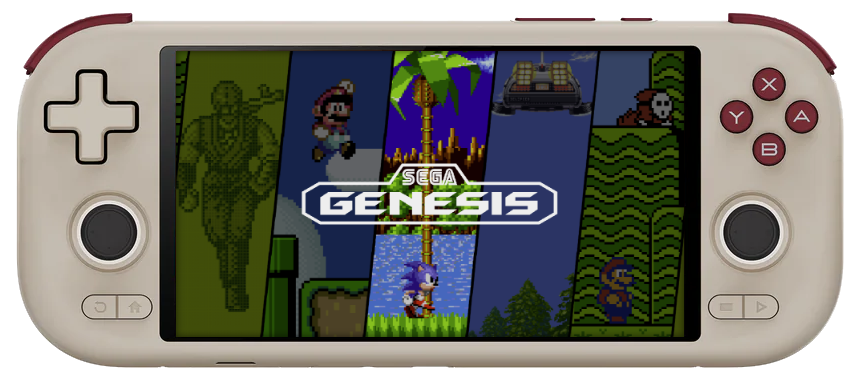
Mangmi Air X

Overview

Device CPU / Architecture Kernel GL driver Vulkan driver Interface
Mangmi Air X Qualcomm SD662 (SM6115) Mainline Linux Freedreno Turnip Sway + Emulation Station

Features

Feature                 Notes
Wifi Can be turned on in Emulation Station under Main Menu > Network Settings
Bluetooth Supports bluetooth audio and controllers
Joystick LEDS Supports selecting from a set of colors, battery level status,
or turning the joystick LEDS off.
Suspend See: Fake Suspend

Controls

Global Hotkeys

Button Combo Action
L1+START+SELECT Exit Emulator / Application
HOME+Vol + Brightness Up
HOME+Vol - Brightness Down
START+Vol + LED on
START+Vol - LED off
HOME+START+Vol + WIFI enable
HOME+START+Vol - WIFI disable

AetherSX2 (PS2)

Button Combo Action
HOME+R1 Save State
HOME+L1 Load State
HOME+X(NORTH) Open Menu
Required Bios Files Path
SCPH-70012.bin /roms/bios/aethersx2/bios

Azahar (Nintendo 3DS)

Button Combo Action
HOME+L2 Toggle Layout
HOME+R2 Swap Screens
HOME+R1 Quicksave
HOME+L1 Quickload
HOME+START Quit Game

Drastic (Nintendo DS)

Button Combo Action
{{ btn_save }} Save State
{{ btn_load }} Load State
{{ btn_menu }} Open Menu
{{ btn_swap_b }} Switch One Screen and Dual Screen Layout
{{ btn_swap_a }} Change Screen Layout/Swap Screens

Dolphin-SA (Gamecube / Wii)

Button Combo Action
HOME+START Quit Game
HOME+R2 Save State
HOME+L2 Load State
HOME+B(SOUTH) Screenshot
HOME+Y(WEST) Change Internal Resolution
HOME+A(EAST) Change Aspect Ratio
HOME+X(NORTH) Show FPS
HOME+D-Pad Up Increase current state slot
HOME+D-Pad Down Decrease current state slot
HOME+R1 Fast-Forward

Duckstation (PSX)

Button Combo Action
HOME+R1 Save State
HOME+L1 Load State
HOME+R2 Fast-Forward
HOME+X(NORTH) Open Menu
HOME+A(EAST) Screenshot
HOME+START Quit Game
Supported Bios Files Path
List /roms/bios
### Hypseus-singe (Daphne)
Button Combo Action
SELECT+START Quit Game
SELECT Coin
START Start
B(SOUTH) Button 1
A(EAST) Button 2
X(NORTH) Button 3

Notes:

  • To add/change mapping you can edit /storage/.config/game/configs/hypseus/hypinput.ini under [KEYBOARD] section by changing third number for a function from 0 (disabled) to a corresponding joystick value. You can identify joystick values by running jstest /dev/input/js0 over ssh.
  • For example the following would assign quit to L1 and pause to R1

    [KEYBOARD]
    KEY_QUIT = SDLK_ESCAPE 0 5
    KEY_PAUSE = SDLK_p 0 6
    

melonDS (Nintendo DS)

Button Combo Action
HOME+R1 Save State
HOME+L1 Load State
L2 Swap Screens

Mupen64Plus-SA (Nintendo 64)

Button Combo Action
START Start
B(SOUTH) A
Y(WEST) B
Right Analog Up C Up
Right Analog Down C Down
Right Analog Left C Left
Right Analog Right C Right
L2 Z
L1 L
R1 R
HOME+START Quit Game
HOME+R1 Save State
HOME+L1 Load State
HOME+Y(WEST) Take Screenshot
HOME+B(SOUTH) Reset Game

Notes:

  • Z and L button assignment can be changed directly in EmulationStation
    • Highlight the game and press X(NORTH)
    • Select ADVANCED GAME OPTIONS
    • Set EMULATOR to MUPEN64PLUSSA
    • Then change INPUT ONFIGURATION
      • Default: L1 = L, L2 = Z
      • Z & L SWAP: L1 = Z, L2 = L
  • You can also create your own custom controller configuration and add it to /storage/.configs/game/configs/mupen64plussa. Then update INPUT CONFIGURATION to CUSTOM following the same steps as above.

Open Beats of Rage (OpenBOR)

Button Combo Action
START Confirm
SELECT Cancel
B(SOUTH) Attack 1
A(EAST) Jump
X(NORTH) Attack 2
Y(WEST) Special

note: pressing A on title screen will exit

PPSSPP-SA (PSP)

Button Combo Action
START Start
SELECT Select
A(EAST) Circle
B(SOUTH) Cross
X(NORTH) Triangle
Y(WEST) Square
L1 L
R1 R
R2 Save State
L2 Load State
L3 Open Menu

RetroArch Hotkeys

Button Combo Action
HOME+START (x2) Quit Game
HOME+R1 Save State
HOME+L1 Load State
HOME+X(NORTH) Open RA Menu
HOME+B(SOUTH) Reset Game
HOME+Y(WEST) Show FPS
HOME+A(EAST) Take Screenshot
HOME+R2 Fast-Forward

Notes:

  • By default ROCKNIX will detect your controller and configure RetroArch hotkeys automatically. This is controlled by the "AUTOCONFIGURE RETROARCH HOTKEYS" option in the Settings > Controller & Bluetooth menu. While the option is enabled, RetroArch hotkeys will be overwritten by the above defaults each time RetroArch is launched. If this behavior is not desired that option can be disabled and your user-defined RetroArch hotkeys will be used instead.

Vice (Commodore 64)

Button Combo Action
START Open Menu
SELECT Display Keyboard
B(SOUTH) Back
A(EAST) Fire / Confirm
L1 Back
L2 Assign Hotkey
L3 Fire (Joy 2)
R1 Confirm
R2 Swap Joystick Port

Additional Notes:

Games will require keyboard key presses to progress through messages and to launch (e.g. SPACE, RSTR [run/start], F3, F7).

SELECT to show onscreen keyboard, left analog/d-pad to move cursor, B to confirm

C= on keyboard resets the machine

L2 to assign highlighted key or menu function to gamepad button (save config to retain)

To cancel onscreen keyboard, move cursor to blank area and A/L1 to close keyboard or click on X in top left corner of keyboard

Joystick can be assigned to port 1 or 2. R2 to switch ports. port 1: [left analog] + [B = fire] port 2: [right analog] + [L3 = fire].

To quit emulator, START, highlight Exit Emulator, B to confirm

Yabasanshiro (Sega Saturn)

Button Combo Action
START Start
SELECT Open Menu
Y(WEST) A
A(EAST) B
B(SOUTH) C
X(NORTH) X
L1 Y
R1 Z
L2 L
R2 R
START+SELECT+R1 Quit Game

Installation

Step 1: Image SD card

First download the latest SM6115 version of ROCKNIX from the button below and follow the instructions listed on the Install page.

Latest Version Latest Version

Step 2: Install ROCKNIX Android Bootloader (ABL)

  • Once you have written the image to an SD card, insert the card and boot into Android.
  • In Android, copy the folder rocknix_abl from the SD card to the root of the Internal Storage.
  • Navigate to Settings -> Handheld Settings -> Advanced -> Run Script as Root.
  • Select the rocknix_abl folder on the Internal Storage.
  • Run the backup_abl.sh script to backup the ROCKNIX ABL.
  • Run the flash_abl.sh script to flash the ROCKNIX ABL.

If GammaOS is installed rather than stock Android, run the backup_abl.sh and flash_abl.sh scripts in an Android Debug Bridge (adb) shell.

Step 3: Configure ROCKNIX ABL

  • Restart your device, holding Vol- as it boots to enter the ROCKNIX ABL. Within the ROCKNIX ABL, use Vol- / Vol+ to navigate between options and Power to select.
  • Navigate to 'Set device model' and select MQ65 / MQ66 as appropriate.
  • Navigate to 'Switch boot mode' and switch it to 'Linux'.
  • Navigate to 'Start' to boot into ROCKNIX.

Additional References